Get started with Uyen
Sign in, pick your languages and level, and start your first practice in a few minutes.
Uyen is an AI conversation partner. You talk out loud in the language you are learning, and Uyen helps you find the words when you get stuck.
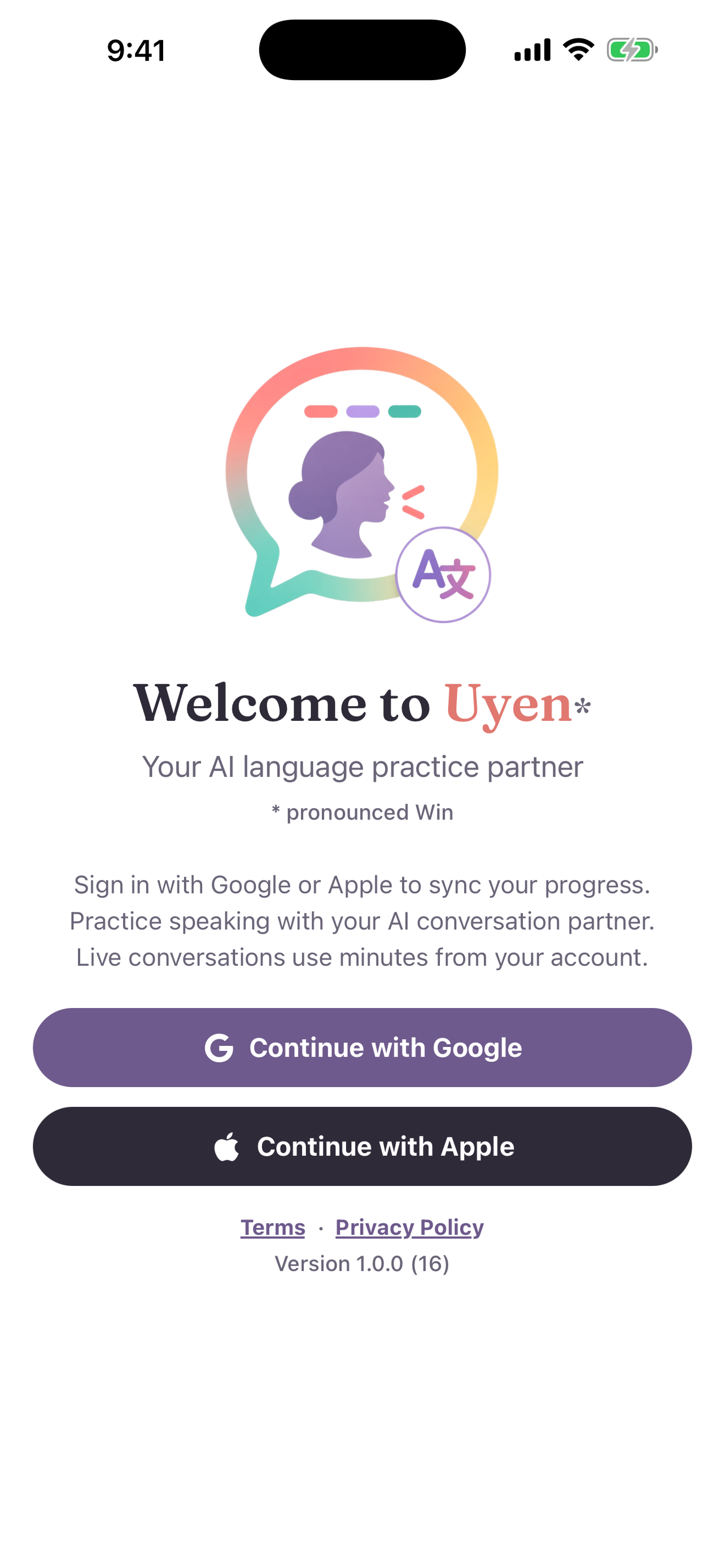
Sign in
- Open Uyen. The Welcome to Uyen screen opens.
- Select Continue with Google or Continue with Apple (iPhone).
Uyen makes your account at your first sign-in. You do not need a password.
Set up your practice
After you sign in, Uyen asks four questions:
- What language will you practice? Pick the language you want to learn. See Choose your languages.
- What language do you already understand? Uyen uses this language for translations and word help.
- How hard should talk feel? Pick Beginner, Intermediate, or Advanced. You can change it later.
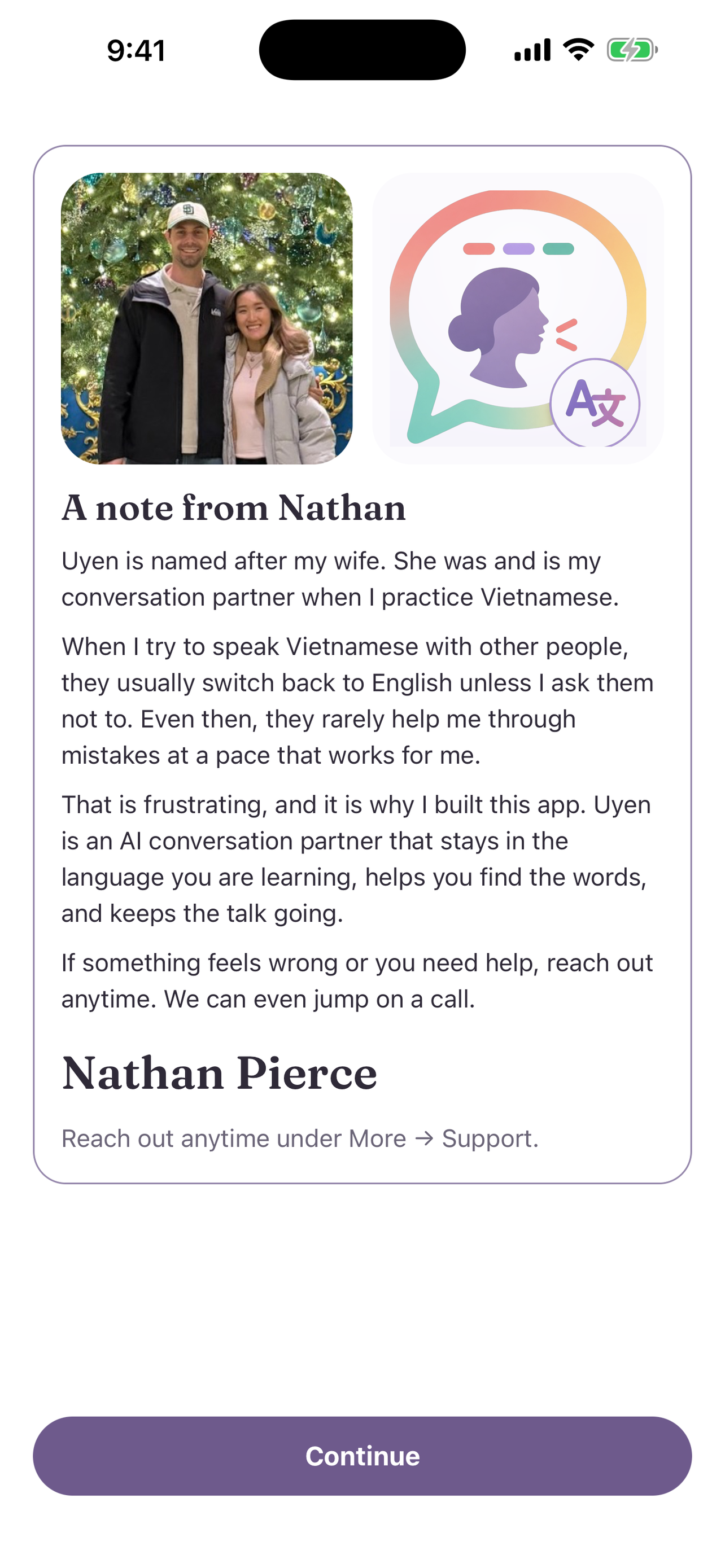
- Read A note from Nathan, then select Continue.
Your free minutes and the tutorial
New accounts get 10 free minutes. Uyen then offers an optional tutorial that teaches four phrases to use when you get stuck. It takes about 3 to 4 minutes.
- Select Start tutorial to try it now. See Take the tutorial.
- Select Skip to go to the topic list.
Choose your first topic
On Choose your first topic, select a topic. Nice to meet you is a good first choice. Uyen opens Practice, and you can start to talk. See Start a practice.