
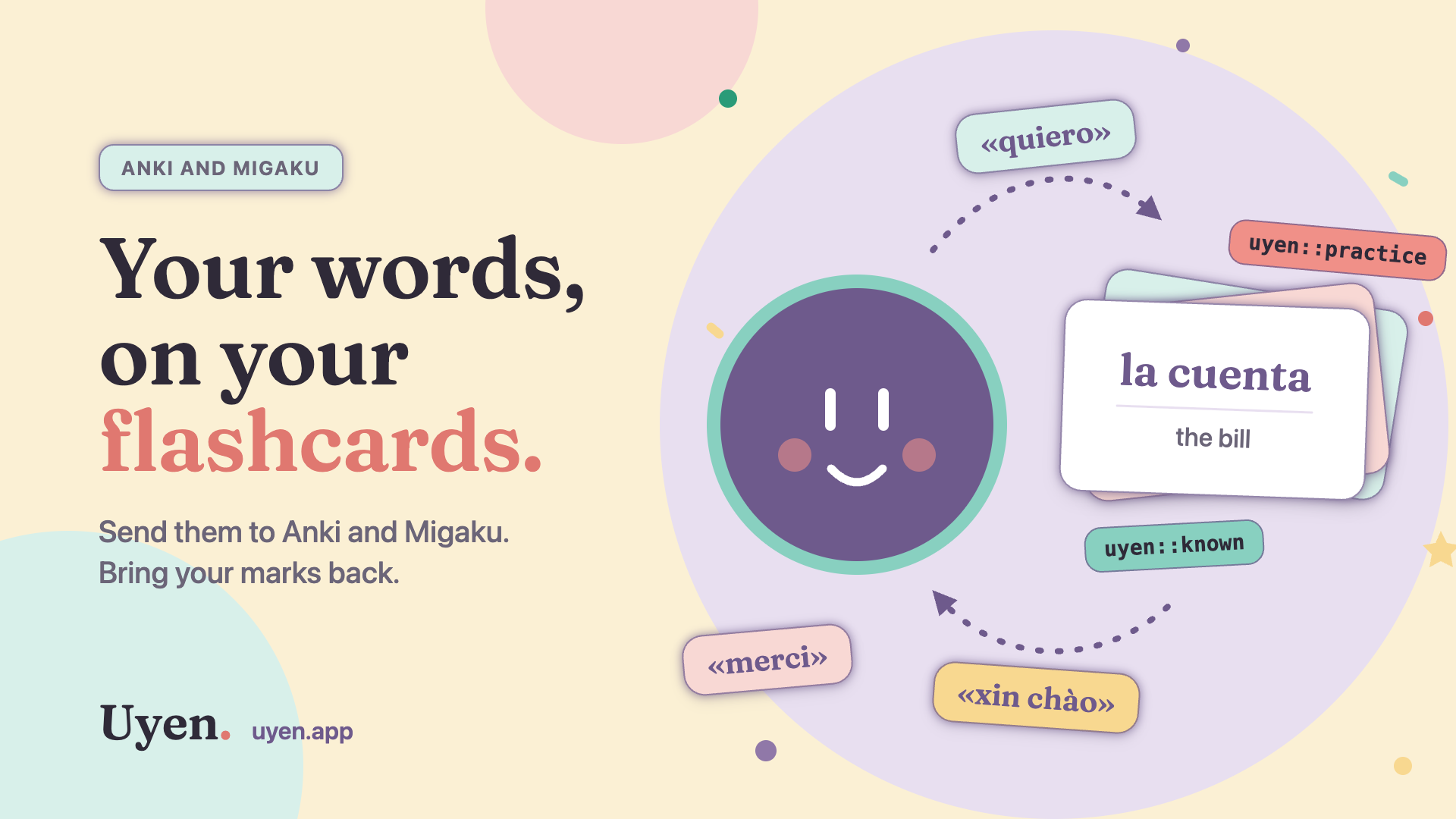
Take your Uyen words to Anki and Migaku
Send the words from your talks to Anki or AnkiDroid as flashcards, move them on to Migaku, and bring a deck back into Uyen with your Known and Practice marks.
Your talks in Uyen give you new words every day. Some of them you want to see again tomorrow, on a flashcard. Now Uyen can send your words to Anki, and through Anki to Migaku. It can also read an Anki deck back, with your marks.
Open More, then Settings. The two new buttons are under Anki and Migaku.
What is on each card
Export words for Anki sends the words on your Words tab for your Practice language. Words that you ignored stay out. Each card has:
- the word or phrase, for example «la cuenta»
- its translation in your Current language
- an example sentence from your own practice, when Uyen has one
- a tag for its mark:
uyen::known,uyen::practice, oruyen::used
The cards go into a deck for the language, for example Uyen::Spanish. Known words get their own deck under it, Uyen::Spanish::Known, so you can suspend them in Anki and review only the words that you still need.
Send your words to AnkiDroid
On Android:
- In Settings, select Export words for Anki.
- In the share sheet, select AnkiDroid. Do not select AnkiDroid card or Instant card.
- AnkiDroid shows its import page with the Basic note type: the word on the front, the translation on the back. If you have a Migaku note type for your language, AnkiDroid selects that one.
- Tap Import.
On iPhone, or with Anki on a computer, send the file to your computer and open it in Anki with File, then Import.
Export again, with no duplicates
Each word has an ID that Anki remembers. Next week, export again: Anki updates the cards that it already has and adds only the new words. When a Practice word becomes Known in Uyen, its card gets the uyen::known tag. To see every Known word, search tag:uyen::known in the Anki browser.
Move your words to Migaku
Migaku copies decks from Anki on a computer, with the Migaku add-on for Anki. When the add-on is installed, Anki selects your Migaku note type for the Uyen file, for example Migaku Spanish. Uyen fills the Migaku fields: Target Word, Definitions, and Sentence. Then, in Migaku, use its Anki import and select your Uyen deck.
Bring words back into Uyen
You can also go the other way. Made a deck in Anki? Reviewed your Uyen cards for a month? Bring them into Uyen, so that your talks know which words you have and which you still need.
- In Anki or AnkiDroid, export one deck as Notes in Plain Text (.txt). This is the only format that works. Turn on Include tags and Include note type name.
- In Uyen, select Import words from Anki, and select the file.
- If Uyen asks, tap the column with the word and the column with the translation. For Migaku cards, Uyen finds them on its own.
- Select Known or Practice for cards that have no Uyen tag. Cards with Anki's
leechtag come in as Practice.
A word that already has a mark in Uyen keeps its Uyen mark, and a word that you ignored stays ignored.
A simple weekly routine
- Talk in Uyen during the week. Mark the words that you want to keep.
- On Sunday, select Export words for Anki. Anki adds the new words and updates the rest.
- Review your cards each day in Anki or Migaku.
- Use the words in your next talks. The Words tab shows how each word grows as you use it.
For every step, the export formats, and help when something goes wrong, see the Anki and Migaku guide.
Uyen is on the App Store and Google Play. If you have a question, use the form on Support or write to [email protected].